Is your WordPress website loading slowly? You are not alone. A slow website is one of the biggest problems that bloggers and business owners face. And it is a serious issue — because a slow site not only frustrates visitors, it also hurts your Google rankings.
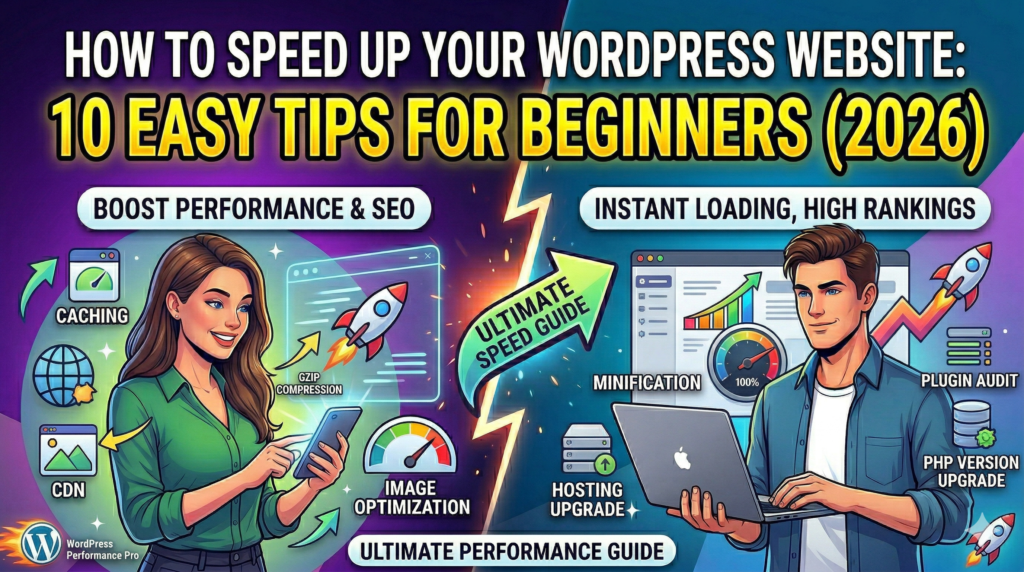
The good news? Speeding up your WordPress site is not as hard as it sounds. In this guide, I will share 10 easy and proven tips to make your WordPress website load faster in 2026 — even if you are a complete beginner.
Why Website Speed Matters
Before we jump into the tips, let me quickly explain why speed is so important:
- Google uses speed as a ranking factor — faster sites rank higher in search results.
- Visitors leave slow sites — studies show 53% of people leave if a page takes more than 3 seconds to load.
- Speed affects conversions — a faster site means more people stay, read, and buy.
Tip 1 – Choose a Good Hosting Provider
Your hosting is the foundation of your website’s speed. If you are on cheap, shared hosting with hundreds of other websites crammed onto one server, your site will always be slow. Invest in a reliable hosting provider like Hostinger, Siteground, or Cloudways. Hostinger is especially popular in 2026 because it offers fast LiteSpeed servers at very affordable prices.
Tip 2 – Install a Caching Plugin
A caching plugin stores a copy of your web pages and serves them quickly to visitors instead of loading everything from scratch each time. The best free caching plugins for WordPress in 2026 are:
- LiteSpeed Cache (best for Hostinger and LiteSpeed servers)
- W3 Total Cache
- WP Super Cache
If you are on Hostinger, use LiteSpeed Cache. It is extremely powerful and easy to configure.
Tip 3 – Optimize and Compress Your Images
Large image files are one of the main reasons websites are slow. Before uploading images to WordPress, always compress them. Tools you can use:
- TinyPNG — Free online tool to compress images
- Smush Plugin — Automatically compresses images in WordPress
- ShortPixel — Another great image optimization plugin
Also, use WebP format for images instead of JPG or PNG — WebP files are much smaller and still look great.
Tip 4 – Use a Content Delivery Network (CDN)
A CDN stores copies of your website’s files on servers all around the world. When someone visits your site, the files are delivered from the server closest to them — making it load much faster. Cloudflare offers a free CDN that works great with WordPress.
Tip 5 – Choose a Lightweight WordPress Theme
Some WordPress themes are bloated with heavy code that slows down your site. Choose a lightweight, fast theme like Astra, GeneratePress, or Kadence. These themes are designed for speed and have very small file sizes.
Tip 6 – Minimize and Combine CSS and JavaScript Files
Every plugin and theme adds its own CSS and JavaScript files to your site. Having too many of these files means more requests to the server, which slows things down. A good caching plugin like LiteSpeed Cache or WP Rocket can automatically combine and minimize these files for you.
Tip 7 – Limit the Number of Plugins You Use
Every plugin you add to WordPress adds more code and more database queries. Only keep plugins you actually need. Regularly audit your plugins and deactivate and delete any you are not using. As a general rule, try to keep your total plugin count under 20.
Tip 8 – Enable Lazy Loading for Images
Lazy loading means images only load when a visitor scrolls down to see them. This dramatically speeds up the initial page load time. Most modern WordPress themes and caching plugins include this feature automatically. You can also enable it in LiteSpeed Cache under the “Media” settings tab.
Tip 9 – Optimize Your WordPress Database
Over time, your WordPress database collects a lot of unnecessary data — old revisions, spam comments, deleted posts in trash, and more. Cleaning this up can speed up your site. Use the WP-Optimize plugin to clean and optimize your database automatically.
Tip 10 – Test Your Website Speed Regularly
How do you know if your speed improvements are working? Test your site regularly using these free tools:
- Google PageSpeed Insights — pagespeed.web.dev
- GTmetrix — gtmetrix.com
- Pingdom — tools.pingdom.com
Aim for a score of 80+ on Google PageSpeed Insights and a load time under 2 seconds.
Conclusion
Improving your WordPress website speed does not have to be complicated. Start with the basics — good hosting, a caching plugin, and optimized images — and you will see a significant improvement immediately. Then work through the other tips one by one.
A faster website means better SEO, happier visitors, and more success for your online business. So start optimizing today!
Have any questions about speeding up WordPress? Drop them in the comments below and I will be happy to help!
Pingback: How to Secure Your WordPress Website in 2026: 10 Essential Security Tips to Stop Hackers - Ecom Saurabh